Hard links
Classic hard links
Each file on your disk connects a name to a certain area on disk, with a one-to-one relation. But, sometimes it’s necessary to reference the same area on disk with more than one name (or link). This can save you a lot of disk space, because otherwise you’d need to copy the file’s data.
Links are extensively used by the operating system, by Time Machine and by many Apple apps (like iTunes, Photos etc.) and also by some third-party apps.
Most modern file systems support two kinds of links: soft links and hard links.
A soft link is basically a small file that contains only a reference to the original file. DaisyDisk counts soft links simply as small files and they do not create any problems when calculating folder sizes.
Unlike soft links, for hard links, it’s impossible to tell which of them is the “original” file and which is a “reference”, because all hard links to the same area on disk are indistinguishable from each other. Some apps (including Finder) do not take this fact into account and count parallel hard links twice or more times as distinct files, which produces wrong folder sizes.
DaisyDisk detects hard links and counts them correctly, i.e. only once each. The first occurrence of a hard link (the primary link) is counted, and the rest of parallel hard links (secondary links) are assigned a virtual size of 0 bytes, so that they do not contribute to the overall folder size.
Note that the linked disk space is not released until the last hard link pointing to it is deleted. It may sometimes create confusion, because it looks like no free space appears after you delete a file.
To help you recognize hard links, DaisyDisk displays visual hints in the sidebar list. For primary hard links, there is a white rectangle inside the item’s bullet. For secondary hard links, there is a dark circle inside the bullet.
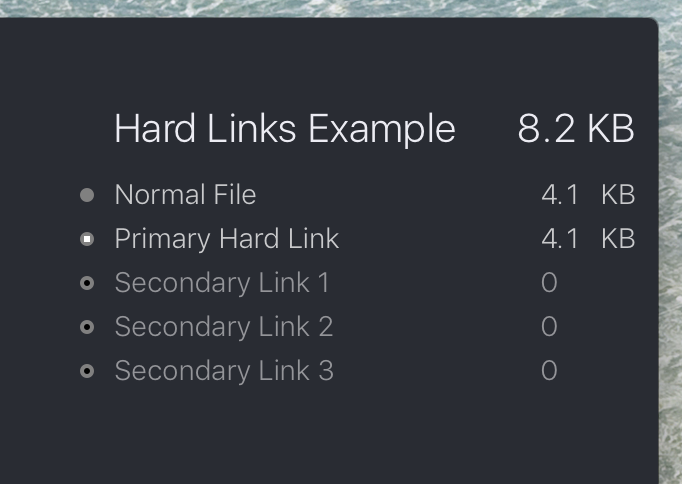
When you delete a hard link in DaisyDisk, the app will update all parallel hard links accordingly, and recalculate the overall folder size correctly. (If you delete a hard link outside DaisyDisk, you should rescan in DaisyDisk to update the visual hints and the folder size.)
Clones on APFS
Clones are a new feature of APFS. They allow to create instant copies of files and folders that do not occupy additional disk space. Clones superseded hard links for Time Machine’s local snapshots on macOS High Sierra.
By analogy with hard links, DaisyDisk also detects APFS clones (full clones) and counts each of them properly – only the first occurrence is counted, and the rest of the clones are assigned a virtual size of 0 bytes, so that they do not contribute to the overall folder size.
Note that unlike hard links, the APFS clones can also be partial, i.e. they can reference a common part shared between several files, while also have their own unique part. This situation can occur, for example, when you copy an existing file, but then append the source or the copied file with more data. The unmodified part is shared between the source and the copy, while the appended file now also includes its own new block of data. Such partial clones no longer qualify as full clones and cannot be properly accounted for, because macOS does not currently provide any reliable tools to count the partially shared blocks. Fortunately, the practical use of partial APFS clones on macOS is small and does not noticeably affect the overall accuracy of space calculation.
APFS clone detection is only supported by macOS 14 Sonoma and later.